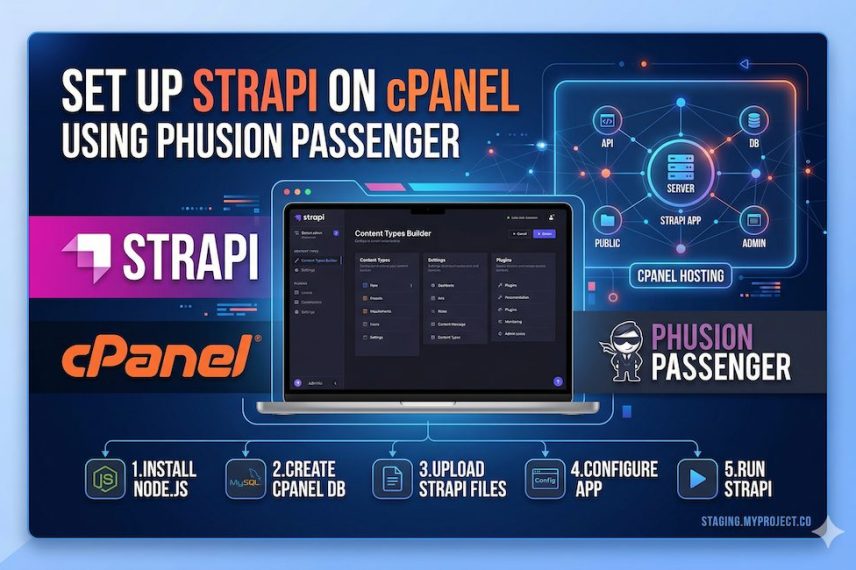
Deploying Strapi on cPanel with Phusion Passenger is possible, but there are a few details that matter, especially if your project uses TypeScript. This guide walks through a working production setup for Strapi on cPanel.
What You Need
Before starting, make sure your hosting environment has:
- cPanel Application Manager enabled
- Phusion Passenger enabled
- Node.js 20+ available
- MySQL or MariaDB available
- SSH access to the cPanel account
- a subdomain for Strapi, for example cms.yourdomain.com
A good setup is:
- frontend: https://yourdomain.com
- Strapi CMS: https://cms.yourdomain.com
1. Create the Subdomain
In cPanel, create a subdomain for Strapi, for example:
- cms.yourdomain.com
This is the public URL your Strapi app will use.
2. Upload the Strapi Project
Upload your Strapi app files to the server.
A typical location is:
- /home/yourcpaneluser/public_html
or better:
- /home/yourcpaneluser/strapi
If you use public_html, make sure your Node app in Application Manager points there.
Upload these parts of the project:
- package.json
- package-lock.json
- config/
- database/
- src/
- public/
- types/
- tsconfig.json
- favicon.png
Do not upload:
- node_modules/
- .cache/
- temporary build artifacts you do not need
3. Create the Database
In cPanel, create a MySQL database and user.
Use the real cPanel-generated names, which are often prefixed. For example:
- database name: youruser_db
- username: youruser_user
Do not assume local placeholder names like strapi_fold will work in production.
4. Create the .env File
In your Strapi app root, create .env with production values:
HOST=0.0.0.0
PORT=1337
NODE_ENV=production
PUBLIC_URL=https://cms.yourdomain.com

APP_KEYS=your_key_1,your_key_2,your_key_3,your_key_4
API_TOKEN_SALT=your_api_token_salt
ADMIN_JWT_SECRET=your_admin_jwt_secret
TRANSFER_TOKEN_SALT=your_transfer_token_salt
ENCRYPTION_KEY=your_encryption_key
JWT_SECRET=your_jwt_secret

DATABASE_CLIENT=mysql
DATABASE_HOST=localhost
DATABASE_PORT=3306
DATABASE_NAME=your_real_db_name
DATABASE_USERNAME=your_real_db_user
DATABASE_PASSWORD=your_real_db_password
DATABASE_SSL=false
5. Make Sure server.ts Uses the Public URL
In config/server.ts, include:
import type { Core } from '@strapi/strapi';

const config = ({ env }: Core.Config.Shared.ConfigParams): Core.Config.Server => ({
  host: env('HOST', '0.0.0.0'),
  port: env.int('PORT', 1337),
  url: env('PUBLIC_URL', ''),
  app: {
    keys: env.array('APP_KEYS'),
  },
});

export default config;
This makes Strapi use the real public domain instead of localhost.
6. Important: Add JS Config Files for Passenger
If your Strapi project uses TypeScript, Passenger startup via app.js may ignore .ts config files.
You should create JS equivalents in config/:
- config/admin.js
- config/api.js
- config/database.js
- config/middlewares.js
- config/plugins.js
- config/server.js
Example config/admin.js:
module.exports = ({ env }) => ({
  auth: {
    secret: env('ADMIN_JWT_SECRET'),
  },
  apiToken: {
    salt: env('API_TOKEN_SALT'),
  },
  transfer: {
    token: {
      salt: env('TRANSFER_TOKEN_SALT'),
    },
  },
  secrets: {
    encryptionKey: env('ENCRYPTION_KEY'),
  },
  flags: {
    nps: env.bool('FLAG_NPS', true),
    promoteEE: env.bool('FLAG_PROMOTE_EE', true),
  },
});
Example config/server.js:
module.exports = ({ env }) => ({
  host: env('HOST', '0.0.0.0'),
  port: env.int('PORT', 1337),
  url: env('PUBLIC_URL', ''),
  app: {
    keys: env.array('APP_KEYS'),
  },
});
Example config/api.js:
module.exports = {
  rest: {
    defaultLimit: 25,
    maxLimit: 100,
    withCount: true,
  },
};
Example config/middlewares.js:
module.exports = [
  'strapi::logger',
  'strapi::errors',
  'strapi::security',
  'strapi::cors',
  'strapi::poweredBy',
  'strapi::query',
  'strapi::body',
  'strapi::session',
  'strapi::favicon',
  'strapi::public',
];
Example config/plugins.js:
module.exports = ({ env }) => ({});
7. Add app.js for Passenger
This is the most important file for Passenger.
Create app.js in the app root:
process.env.NODE_ENV = process.env.NODE_ENV || "production";

require("@strapi/strapi")
  .createStrapi({ distDir: "./dist" })
  .start();
The distDir part matters for serving the built admin frontend correctly.
8. Install Dependencies
SSH into the cPanel account and go to the app folder:
cd ~/public_html
or wherever your app lives, then run:
/opt/cpanel/ea-nodejs22/bin/npm install
If your project includes better-sqlite3 but you are using MySQL in production, remove better-sqlite3 first. It often fails to compile on shared hosting and is not needed for MySQL.
On this cPanel server, npm was not available from the default shell path. Using /opt/cpanel/ea-nodejs22/bin/npm runs the cPanel-provided npm binary directly, which is why it worked.
9. Build Strapi
Run:
/opt/cpanel/ea-nodejs22/bin/npm run build
This builds the admin panel.
10. Configure cPanel Application Manager
In cPanel Application Manager, create the Node app with values like:
- Application Name: Strapi
- Deployment Domain: cms.yourdomain.com
- Base Application URL: /
- Application Path: public_html or strapi
- Deployment Environment: Production
- Startup file: app.js
Important:
- Base Application URL should be /
- Application Path should be relative to your home directory
11. Restart the App
After saving the app in Application Manager, restart it from cPanel.
Do not rely only on manually running node app.js in SSH. Passenger must be the one managing the app process.
12. Test the Deployment
Check:
- https://cms.yourdomain.com/api
- https://cms.yourdomain.com/admin
- https://cms.yourdomain.com/admin/init
If /api returns Strapi JSON and /admin/init returns admin config data, the backend is working.
Common Issues
strapi: command not found
This means npm install did not complete successfully.
better-sqlite3 build errors
Remove better-sqlite3 if you are using MySQL.
Missing admin.auth.secret configuration
This usually means your .ts config files are not being loaded by Passenger. Add JS config files.
/api works but /admin is Not Found
This usually means your app.js is missing:
.createStrapi({ distDir: "./dist" })
Not Found even when the app is stopped
That usually means Passenger is not actually serving the subdomain. Recheck Application Manager routing.
Final Result
Once everything is correct, Strapi should work at:
- https://cms.yourdomain.com
- admin: https://cms.yourdomain.com/admin
Closing Notes
Strapi on cPanel with Passenger works, but TypeScript-based Strapi projects need extra care because Passenger startup does not naturally use .ts config files. The clean solution is to keep your project as-is, but add JS config equivalents and a proper Passenger app.js.